Reservations Guide
Use reservations to check when equipment is available, reserve equipment through Slack, or manage reservations and equipment policies if your role allows it.
View the Reservation Calendar
Select Reservations in the Equipment Status Board navigation.
The calendar shows each reservable equipment item in a separate column. A block labeled Reserved shows an unavailable time. The calendar does not show the name of the member who made the reservation.
Use Previous, the date field, or Next to view another day. If the page says that no reservable tools are configured, ask a staff member whether reservations are available for the equipment you need.
Reserve Equipment in Slack
Anyone who can use the ESB Slack app can reserve equipment. An Equipment Status Board account is not required.
Create a Reservation
- Enter
/esb-reservein Slack. - Select Reserve for the equipment you need.
- Review the listed unavailable times and reservation limits.
- Enter a start time and an end time.
- Enter a note if it helps other users understand the reservation.
- Select Reserve.
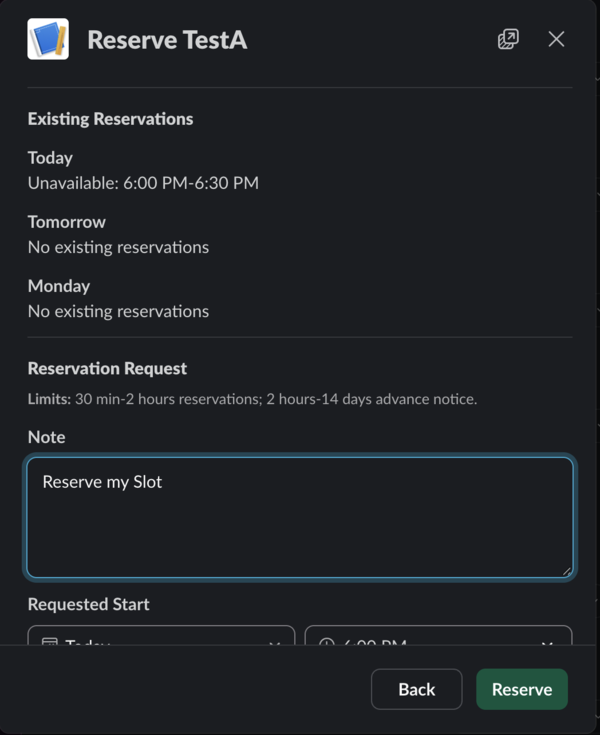
Slack shows a confirmation with the equipment, time, and note.
If your requested time is unavailable or does not meet the equipment reservation policy, Slack shows the reason. Select Choose another time and enter a valid time.
View or Cancel Your Reservations
- Enter
/esb-reservein Slack. - Select My reservations.
- To cancel a reservation, select Cancel reservation.
- Review the reservation details.
- Select Cancel reservation to confirm.
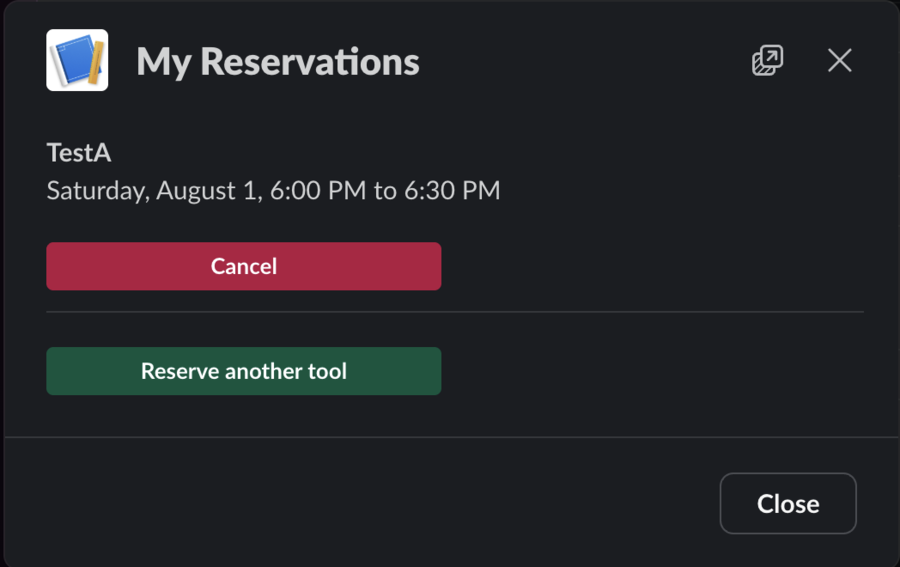
You can cancel only an active reservation that belongs to your Slack identity or linked ESB account. If staff later creates an ESB account for you, reservations you made previously through Slack still appear here. Slack confirms when the reservation is canceled.
Manage Reservations
Technicians and staff can manage reservations in the web application. Select Admin, then select Reservations.
View Reservations and History
The Calendar view shows reservations for one day. Use Previous, Today, or Next to change the displayed day.
Select History to view reservation records. Use the filters to limit the results by date range, area, equipment, member, status, or source. The source is either Slack or Admin.
An active reservation can be edited or canceled. A canceled reservation remains in the history.
Create a Reservation or Administrative Hold
- Select New Reservation.
- Select Member reservation or Admin hold.
- Select the equipment.
- If you selected Member reservation, select the member.
- Enter the start date, start time, duration, and note.
- Select Review reservation.
- Review the reservation details and any policy warnings.
- Confirm the reservation.
An administrative hold blocks a time without assigning the reservation to a member. All administrative reservations and holds require a note.
Edit or Cancel a Reservation
To edit an active reservation, select Edit, update the fields, review the changes, and confirm the replacement reservation. The system cancels the previous reservation and preserves it in the history.
To cancel an active reservation, select Cancel, then confirm the cancellation. You cannot edit or cancel a reservation that is already canceled.
Configure Reservation Policies
Only staff can configure reservations for an equipment item.
- Open the equipment detail page.
- Select Reservation Settings.
- Select Allow reservations to make the equipment available for reservations.
- Enter a Reservation slug.
- Set the advance-notice, duration, and slot-granularity limits.
- Select Save Reservation Settings.
Use a reservation slug that contains lowercase letters, numbers, and single hyphens only. For example, use laser-cutter-1.
Set Minimum advance notice and Maximum advance notice to control how soon and how far ahead members can reserve the equipment. Set Minimum duration and Maximum duration to control reservation length. Set Slot granularity to control the allowed start-time and duration increments.
The maximum advance notice must be at least the minimum advance notice. The maximum duration must be at least the minimum duration. Both duration limits must be exact multiples of the slot granularity.
Clear Allow reservations to prevent new reservations for the equipment. You cannot configure reservations for archived equipment.